Contracts, quotes, scans, presentations: PDFs are everywhere. Yet when you try to edit one, even simple tasks like "combine several into one" or "pull out just the pages I need" often have no obvious way to do them. Here are the four tasks that come up most, and how to handle them safely.
Four tasks you'll need often
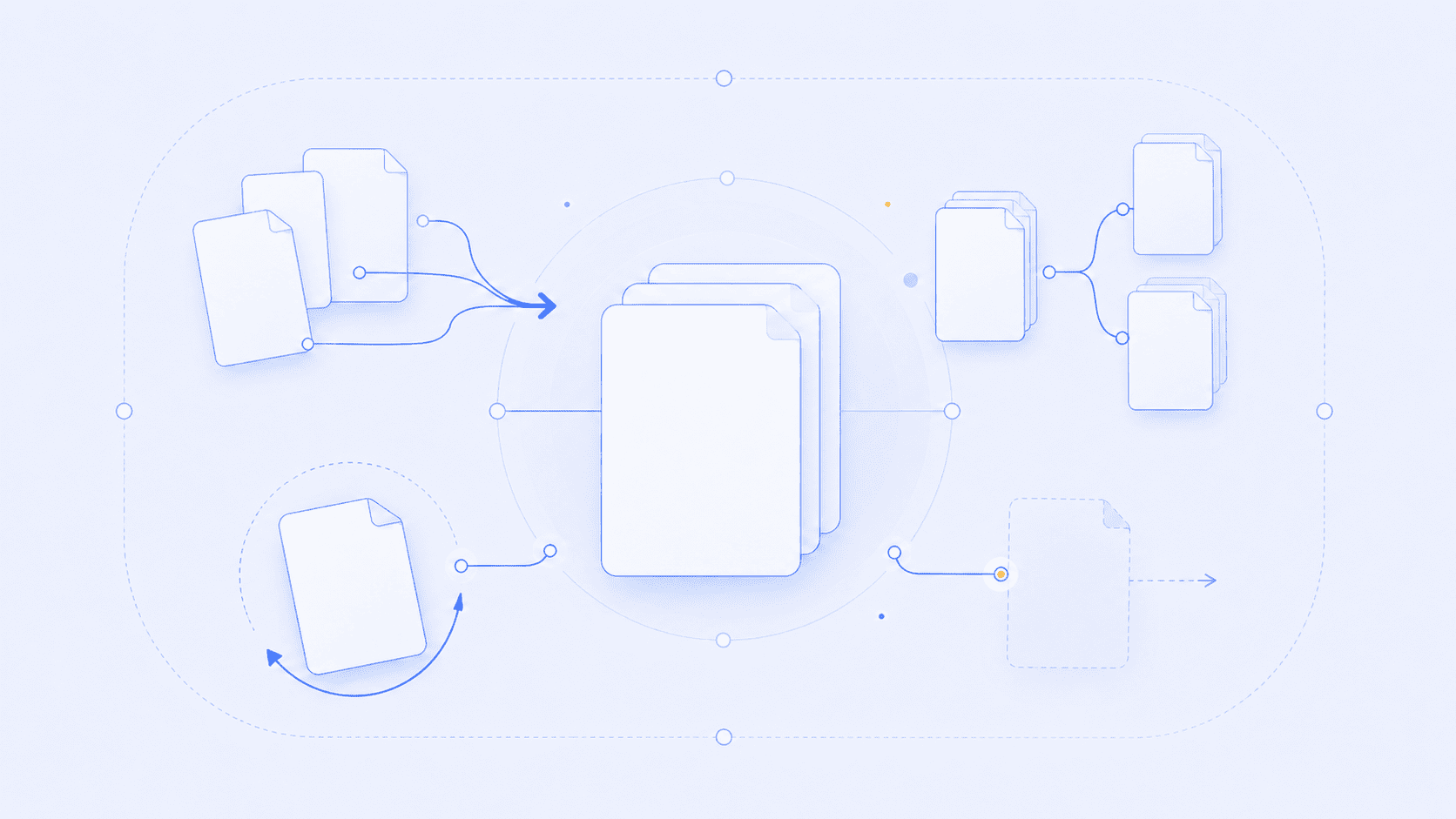
Merge: join scattered PDFs into one. Combine slides each person made into a single deck, tidy a contract scanned a page at a time into one file, or attach a quote, invoice, and receipts to submit together. The key is order: reviewing the list before merging saves you from rebuilding the file.
Split: break one PDF into several. Useful for sending just one chapter of a 100-page report, or separating several scanned documents that ended up in one file.
Rotate: straighten pages that came out sideways or upside down from scanning. Rotate the whole document at once, or pick just the problem pages and turn them in 90-degree steps.
Delete pages: remove blank pages, duplicates, or internal notes that shouldn't be in the final version. A common last step before sending something out.
Number your filenames
When merging several files, it's easy to get the order wrong. For scans, prefixing filenames with 01, 02, and so on makes the merge order line up automatically once sorted. A small habit that prevents big mistakes.
The more sensitive the document, the more it belongs in the browser
PDFs often hold sensitive material: contracts, statements, ID scans.
Online tools that process files by uploading them leave your document sitting on an outside server, if only briefly.
A tool that does everything inside your browser keeps files on your device. That makes it safe for sensitive documents, works even on an unreliable connection, and skips the wait for uploads and downloads.
Try it now
Open the tool that matches your task. All of them process files inside the browser and never send them to a server.
- Several PDFs into one: Merge PDF
- Split by pages or ranges: Split PDF
- Straighten tilted or flipped pages: Rotate PDF
- Remove unwanted pages: Delete PDF Pages